 USD
USD TZS
TZS UGX
UGX ZAR
ZARA 404 Page Not Found error in WordPress (especially on posts, pages, or permalinks) is common when using the LiteSpeed Web Server. In most cases, it’s caused by permalink, rewrite, or cache configuration issues.
This guide explains step-by-step solutions to fix 404 errors quickly.
Common Causes of 404 Errors on LiteSpeed
-
Broken or unsaved WordPress permalinks
-
Missing
.htaccessrewrite rules -
LiteSpeed cache conflicts
-
Incorrect document root
-
File or folder permission issues
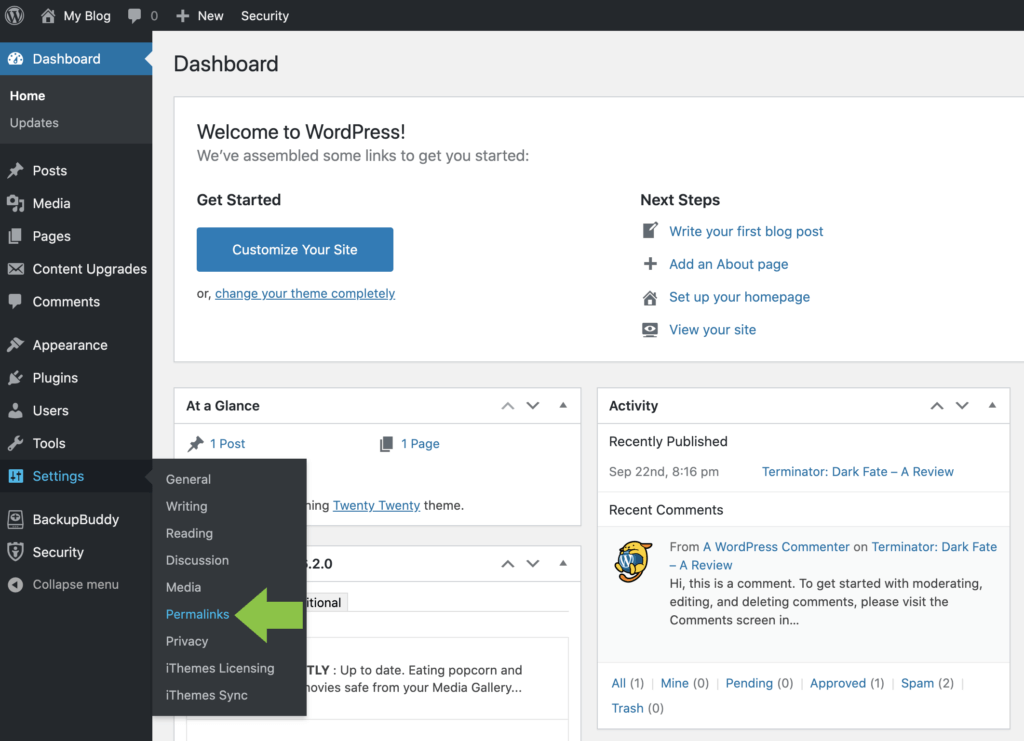
Step 1: Reset WordPress Permalinks (Most Common Fix)

-
Log in to WordPress Admin
-
Go to Settings → Permalinks
-
Select Post name
-
Click Save Changes (even if already selected)
✅ This forces WordPress to regenerate rewrite rules.
Step 2: Check and Fix .htaccess File

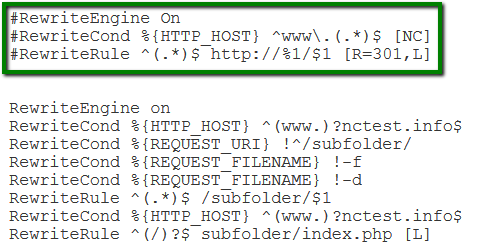
Default WordPress .htaccess for LiteSpeed
Open cPanel → File Manager → public_html → .htaccess
Replace contents with:
Click Save.
???? LiteSpeed uses Apache-compatible rewrite rules, so this works perfectly.
Step 3: Clear LiteSpeed Cache
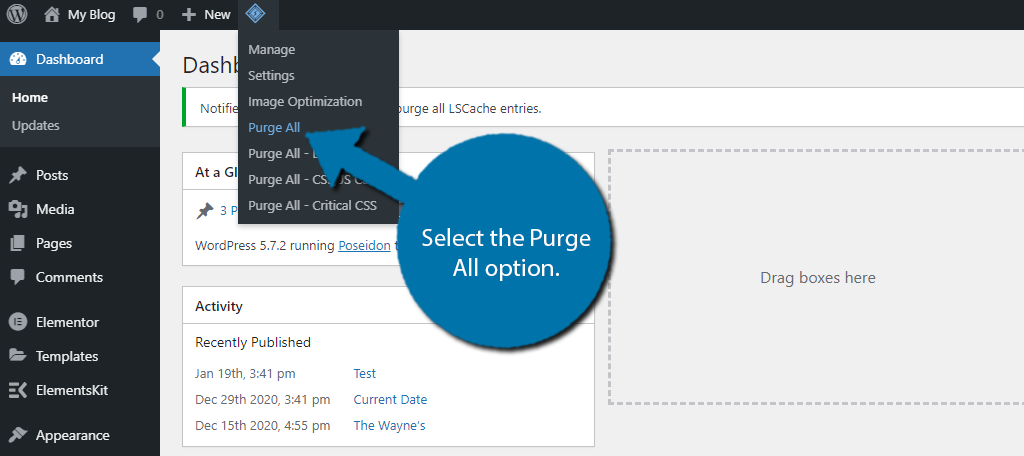

From WordPress Dashboard
-
Go to LiteSpeed Cache → Toolbox
-
Click Purge All
From cPanel (Optional)
-
Open LiteSpeed Web Cache Manager
-
Clear cache for the domain
Step 4: Check Document Root (Addon Domains)
If WordPress is installed on an Addon Domain:
-
Go to cPanel → Domains
-
Confirm Document Root
-
Ensure WordPress files are inside the correct folder
Step 5: Fix File & Folder Permissions
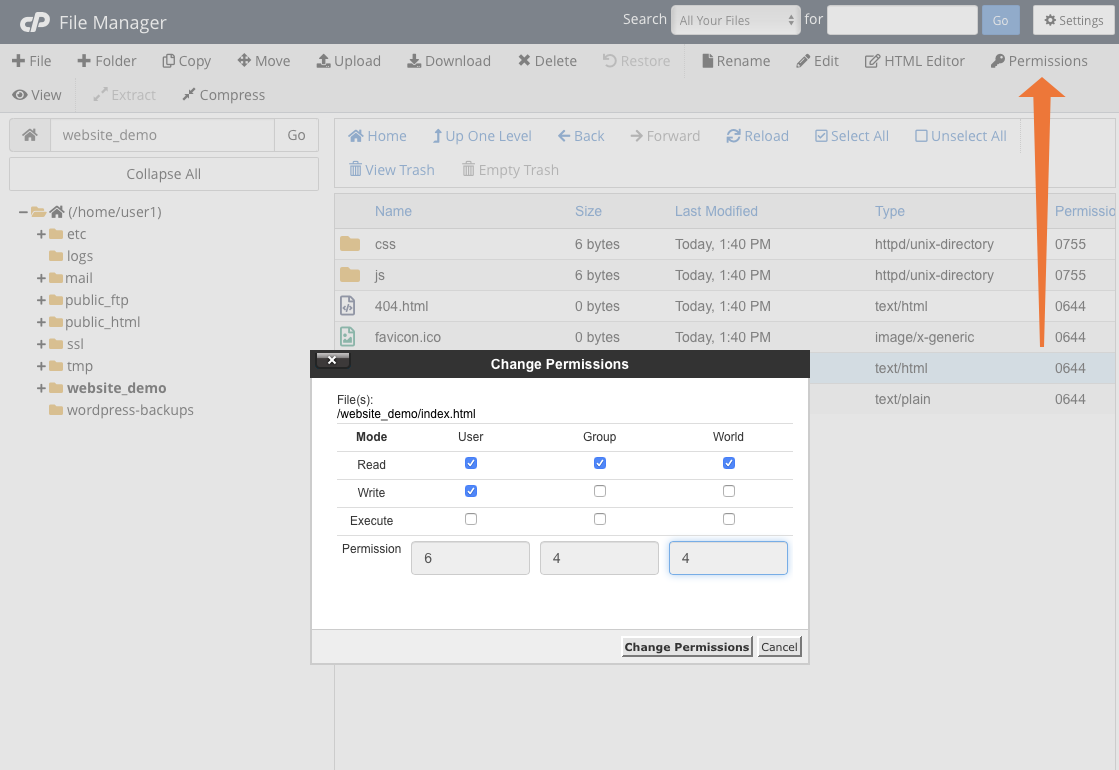

Recommended permissions:
-
Folders:
755 -
Files:
644
In File Manager:
-
Right-click folder/file → Change Permissions
Step 6: Disable Plugins (Conflict Check)
If 404 started after installing a plugin:
-
Rename the plugins folder:
-
Reload your website
-
If fixed, rename back and enable plugins one by one
Step 7: Check LiteSpeed Rewrite Settings (Advanced)
In WHM → LiteSpeed Web Server:
-
Ensure Enable Rewrite = ON
-
Ensure Use Apache mod_rewrite = ON
(Hosting provider–side check)
Step 8: Rebuild LiteSpeed Cache via CLI (Optional)
If you have SSH access:
⚠️ Only for advanced users or admins.
Common Scenarios & Fix Summary
| Issue | Solution |
|---|---|
| 404 on all posts | Reset permalinks |
| 404 on homepage | Check document root |
| 404 after migration | Fix .htaccess |
| 404 only on some pages | Clear LiteSpeed cache |
| 404 after plugin install | Disable plugin |
Best Practices
✅ Always save permalinks after migration
✅ Keep LiteSpeed Cache updated
✅ Avoid duplicate caching plugins
✅ Back up before editing .htaccess
Conclusion
Most 404 errors on WordPress using LiteSpeed are caused by permalink or rewrite issues and can be fixed in minutes. Start with resetting permalinks, then verify .htaccess and clear cache.
