 KES
KES USD
USD UGX
UGX ZAR
ZARcPanel provides easy tools to delete files and folders from your hosting account using File Manager, FTP, or Backup tools. This guide explains the safe ways to delete files in cPanel and what to watch out for.
⚠️ Warning: Deleted files cannot be recovered unless you have a backup.
Method 1: Delete Files Using File Manager (Recommended)


Step 1: Log in to cPanel
Open:
Log in using your cPanel username and password.
Step 2: Open File Manager
-
Go to Files → File Manager
-
Open the folder where the file exists
(usuallypublic_html)
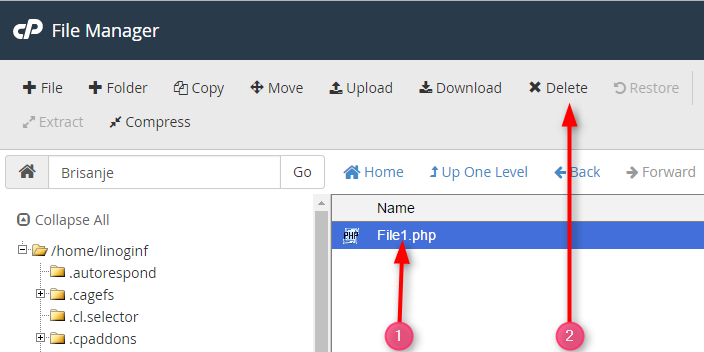
Step 3: Select File or Folder
-
Click once to select a file
-
Hold Ctrl to select multiple files
-
Right-click to select folders
Step 4: Delete the File
-
Click Delete from the top menu OR right-click → Delete
-
Choose:
-
✔ Skip the trash and permanently delete (optional)
-
-
Click Confirm
Method 2: Delete Files Using FTP

-
Connect using an FTP client (e.g. FileZilla)
-
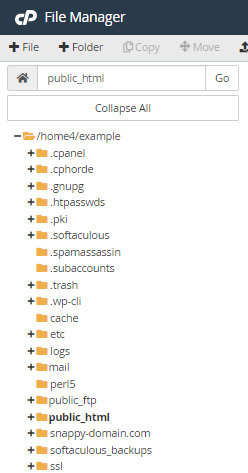
Open
public_html -
Right-click the file or folder
-
Click Delete
Method 3: Delete Website Files (WordPress Example)


Delete a WordPress Plugin Manually
-
Go to:
-
Delete the plugin folder
Delete a WordPress Theme
-
Go to:
-
Delete the theme folder
Method 4: Empty Trash (Important)
Deleted files may go to Trash.
-
In File Manager, click Trash
-
Select files
-
Click Empty Trash
This permanently removes them.
Common Mistakes to Avoid
❌ Deleting index.php or index.html
❌ Deleting .htaccess without backup
❌ Deleting core WordPress folders (wp-admin, wp-includes)
❌ Deleting files outside public_html accidentally
Fix “Permission Denied” Error
-
Right-click file → Change Permissions
-
Set:
-
Files:
644 -
Folders:
755
-
Best Practices
✅ Always back up before deleting
✅ Delete unused plugins, themes, and backups
✅ Empty trash after cleanup
✅ Double-check file paths
Conclusion
Deleting files in cPanel is simple using File Manager or FTP. Always confirm you are deleting the correct file or folder to avoid website issues.
