 KES
KES USD
USD UGX
UGX ZAR
ZARIf your website stops uploading files, emails stop working, or backups fail, your disk space may be full. cPanel provides several easy ways to check disk usage and identify what is consuming space.
This guide explains all methods to see disk space usage in cPanel and what to do next.
Method 1: Check Disk Usage from cPanel Dashboard (Quickest)
-
Log in to cPanel
-
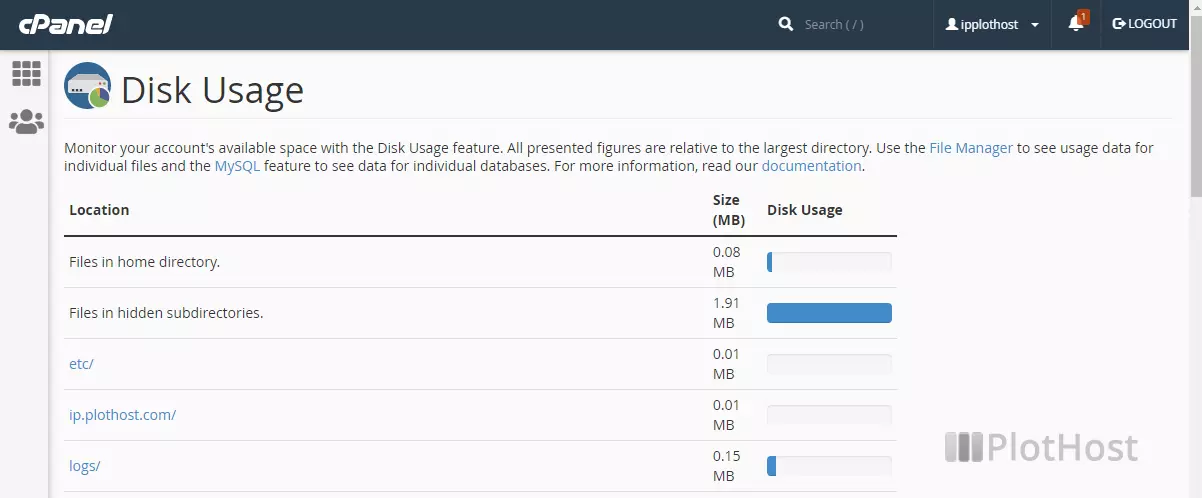
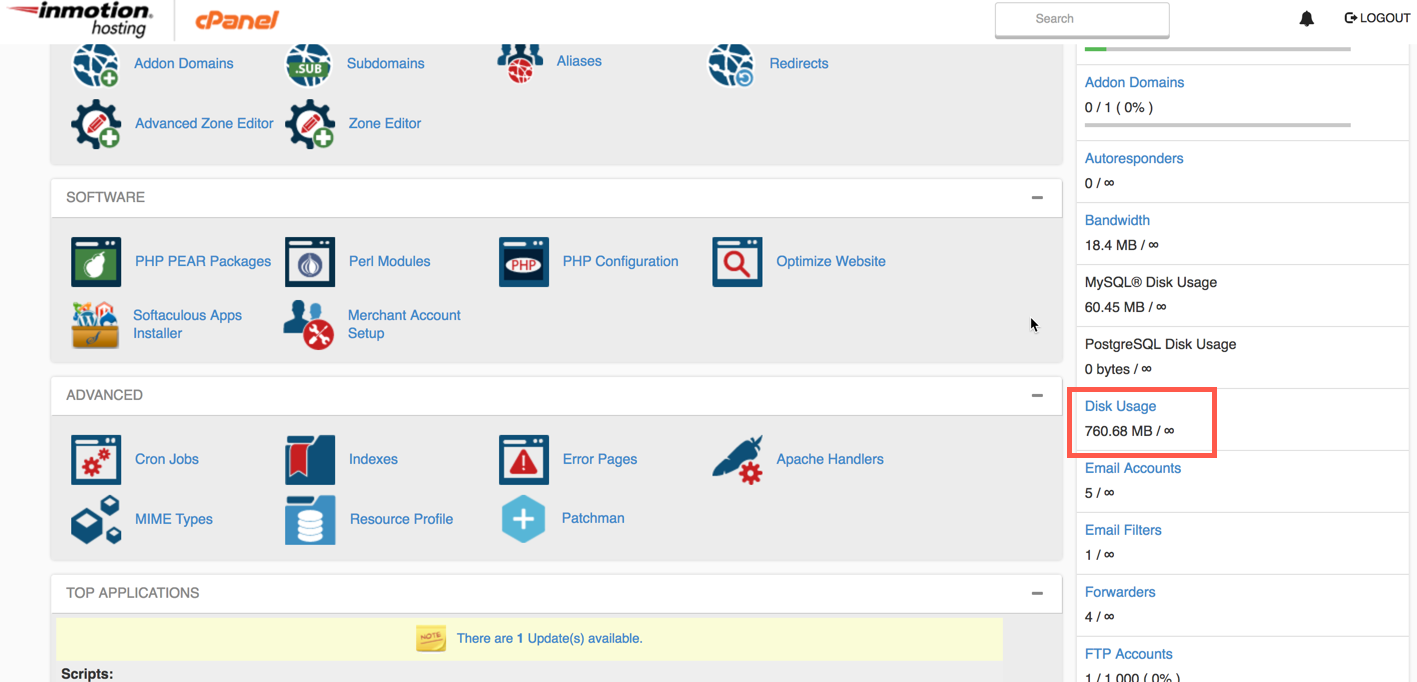
On the right-hand side dashboard, look for:
-
Disk Usage
-
File Usage
-
-
If usage is near or at 100%, your disk is full
✅ This gives a quick overview.
Method 2: Use Disk Usage Tool (Recommended)
-
Log in to cPanel
-
Go to Files → Disk Usage
-
Wait for the scan to complete
-
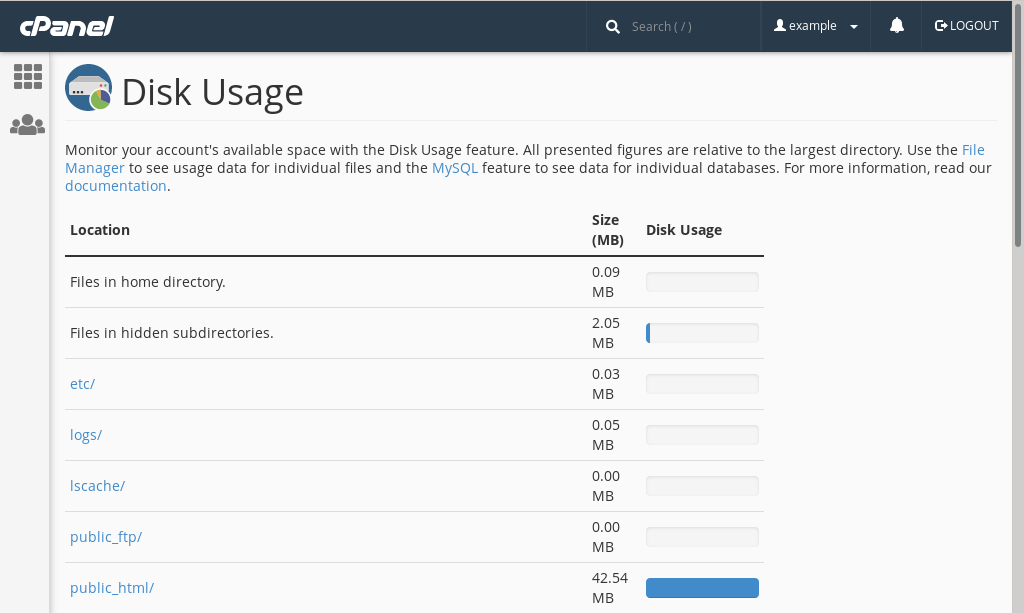
Review folders using the most space, such as:
-
public_html -
mail -
backup -
logs
-
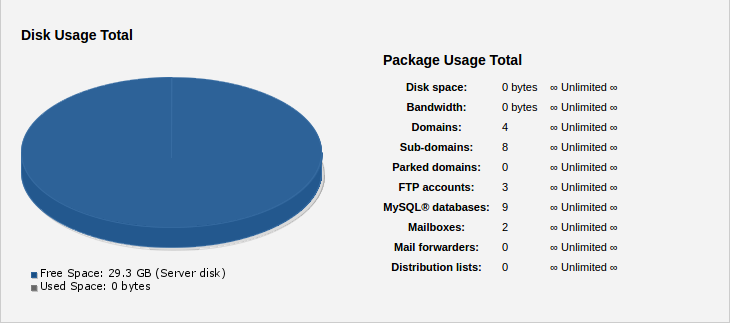
???? The chart helps identify large directories quickly.
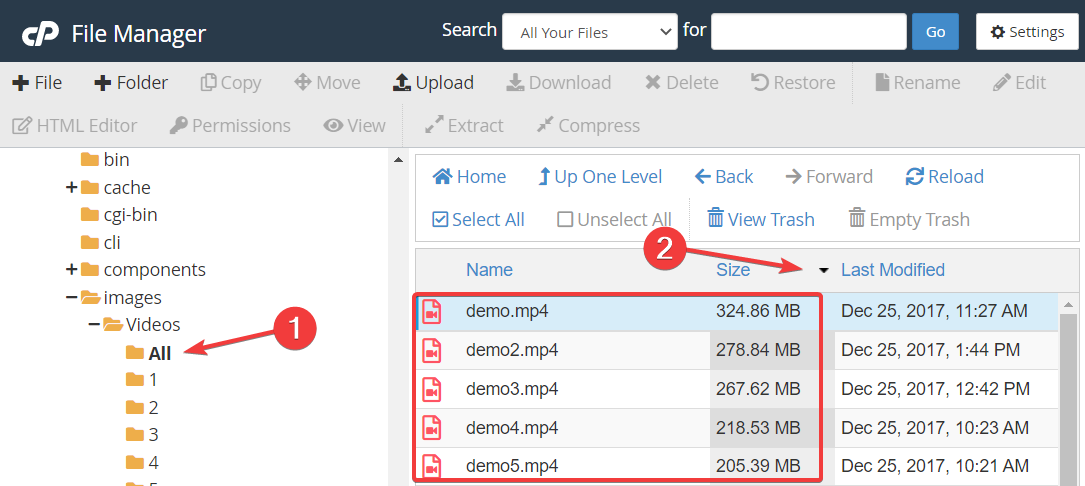
Method 3: Check Disk Space via File Manager
-
Go to Files → File Manager
-
Open your home directory
-
Click Settings (top right)
-
Enable Show Hidden Files
-
Look at folder sizes manually
Common large folders:
-
/mail– email storage -
/backup– backups -
/public_html– website files -
/logs– error and access logs
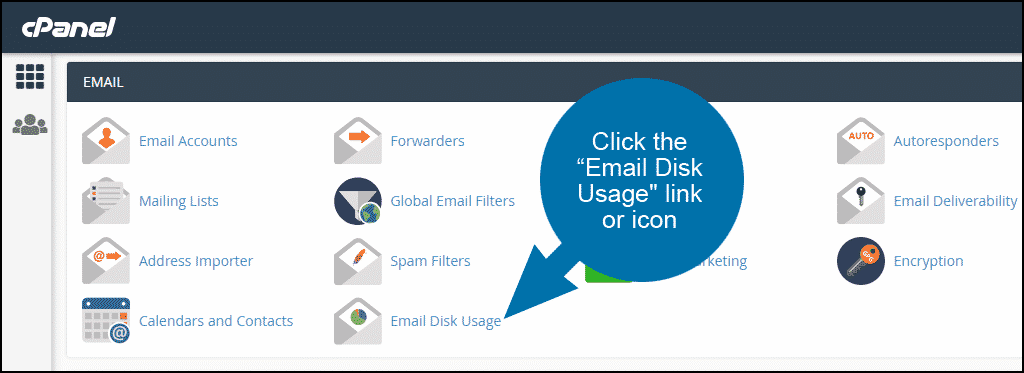
Method 4: Check Disk Space Using Email Usage

-
Go to Email → Email Accounts
-
Check mailbox usage for each email account
-
Mailboxes at 100% can block email sending/receiving
Warning Signs Disk Space Is Full
-
Unable to upload files
-
Emails not sending or receiving
-
Website showing errors
-
Backup failures
-
“Disk quota exceeded” errors
What to Do If Disk Space Is Full
Free Up Disk Space
-
Delete old backups
-
Remove unused files and folders
-
Clear cache files
-
Delete old emails
-
Remove unused WordPress plugins/themes
Increase Disk Space
-
Upgrade hosting plan
-
Move backups to remote storage
-
Contact hosting support
Best Practices
✅ Monitor disk usage weekly
✅ Delete unnecessary backups
✅ Limit email storage per account
✅ Use external storage for backups
Conclusion
Checking disk space usage in cPanel is simple using the Dashboard, Disk Usage tool, or File Manager. If disk space is full, identify large folders and clean them up promptly to avoid service interruptions.
