 KES
KES USD
USD UGX
UGX ZAR
ZARLiteSpeed is a high-performance web server that works seamlessly with WordPress. When properly configured in cPanel and WordPress, it significantly improves website speed, security, and performance.
This guide explains how to configure LiteSpeed on both cPanel and WordPress using the LiteSpeed Cache (LSCache) plugin.
Requirements
Before starting, ensure:
-
Hosting uses LiteSpeed Web Server
-
WordPress is installed
-
You have access to cPanel and WordPress Admin
-
AutoSSL is enabled
Part 1: Configure LiteSpeed in cPanel
Step 1: Verify LiteSpeed Is Active
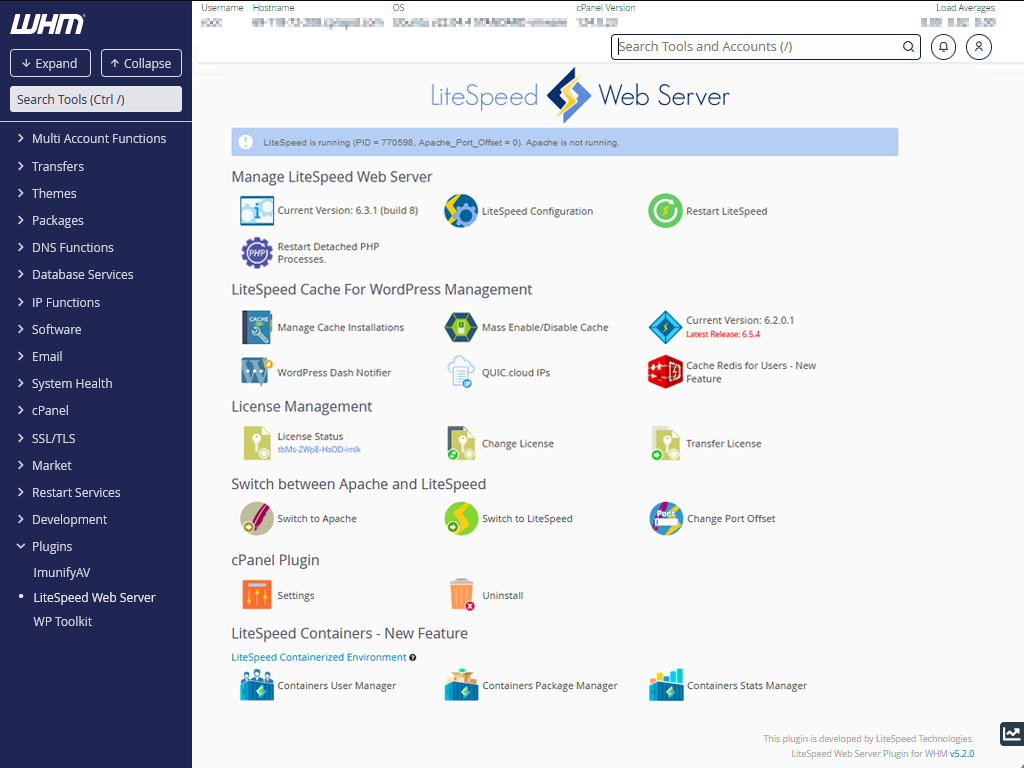
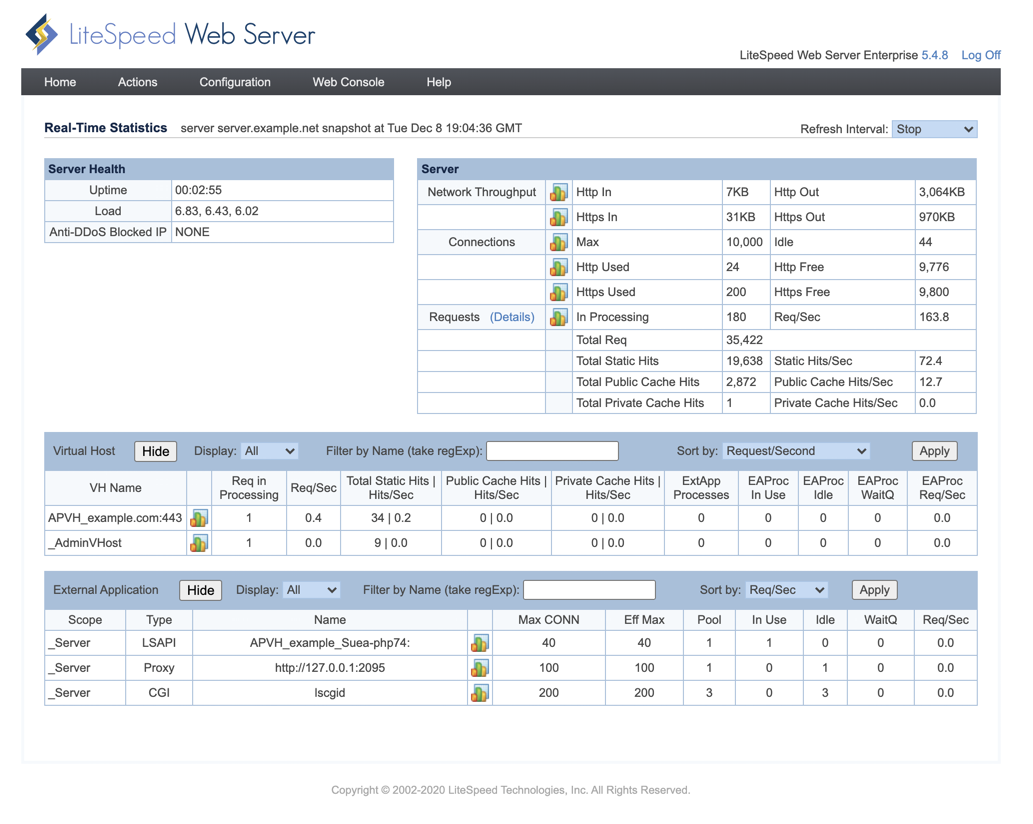
In cPanel:
-
Scroll to Metrics / Software
-
Look for LiteSpeed Web Cache Manager
(If present → LiteSpeed is active)
If missing, contact your hosting provider.
Step 2: Enable SSL (Important)
-
Go to Security → SSL/TLS Status
-
Ensure your domain shows a green lock (????)
LiteSpeed Cache works best with HTTPS.
Step 3: Check PHP Version & Handler


-
Go to Software → Select PHP Version
-
Use:
-
PHP 8.1 or 8.2 (recommended)
-
-
Ensure handler is LiteSpeed (lsapi)
Part 2: Configure LiteSpeed Cache in WordPress
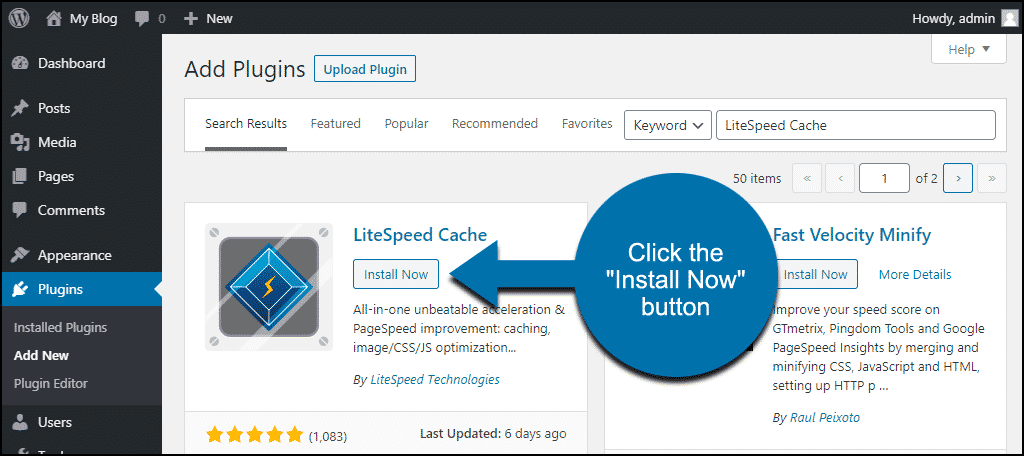
Step 4: Install LiteSpeed Cache Plugin

-
Log in to WordPress Admin
-
Go to Plugins → Add New
-
Search for LiteSpeed Cache
-
Click Install → Activate
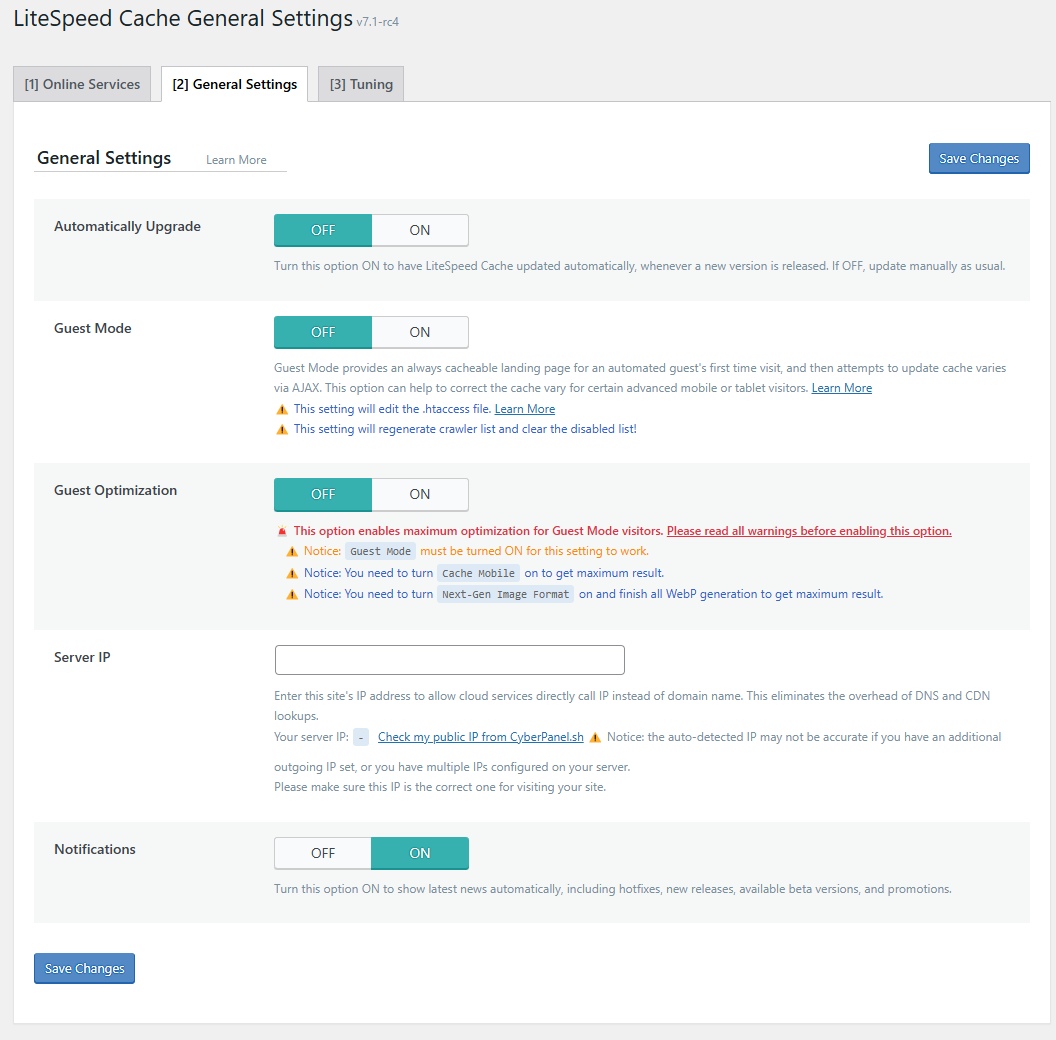
Step 5: Enable LiteSpeed Cache
-
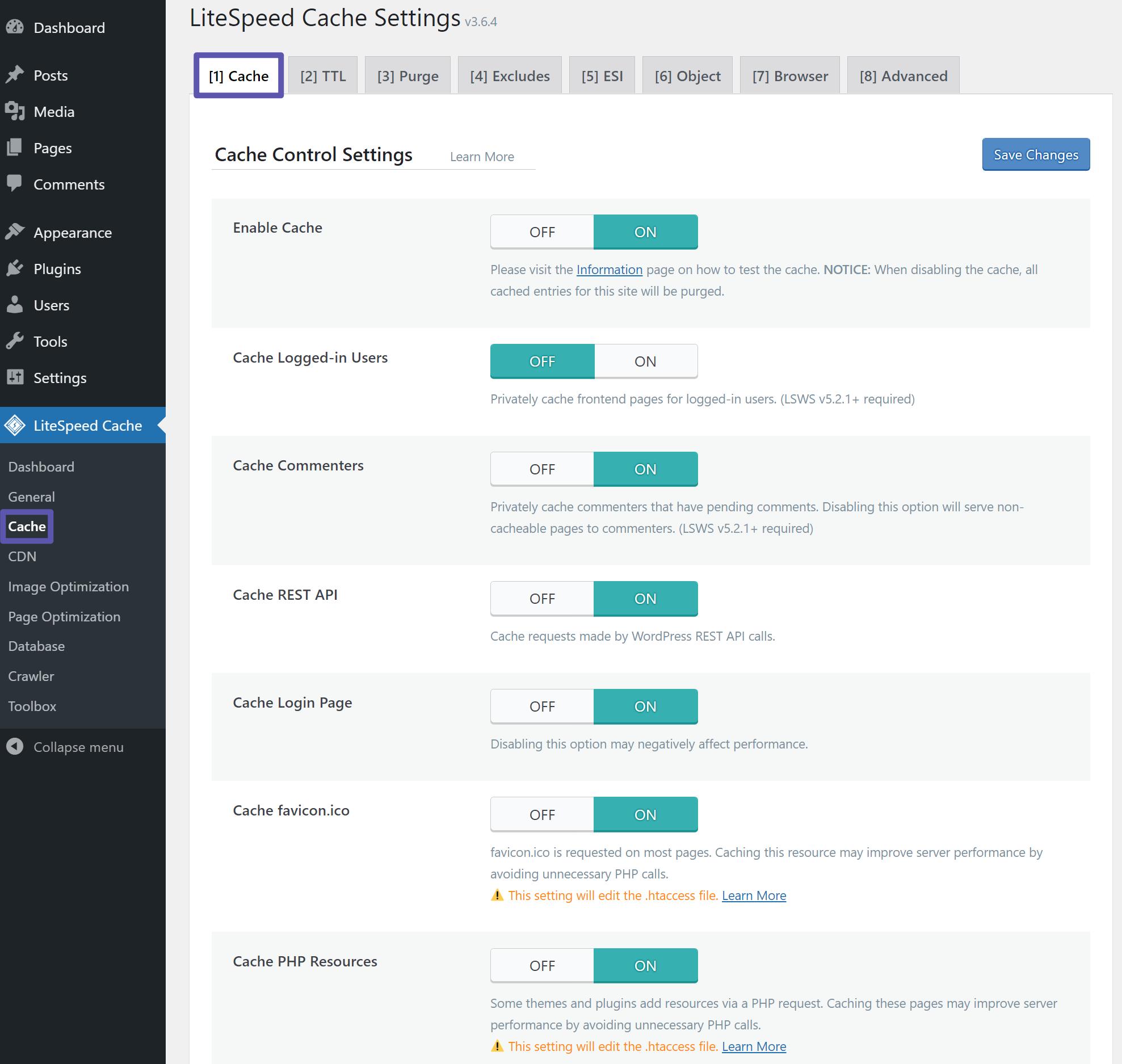
Go to LiteSpeed Cache → General
-
Ensure:
-
Enable LiteSpeed Cache: ON
-
-
Click Save Changes
Step 6: Recommended LiteSpeed Cache Settings
Cache Settings
-
Enable Cache: ✅ ON
-
Cache Logged-in Users: ❌ OFF
-
Cache Mobile: ❌ OFF (unless mobile theme)
-
Cache REST API: ✅ ON
Page Optimization (Speed Boost)
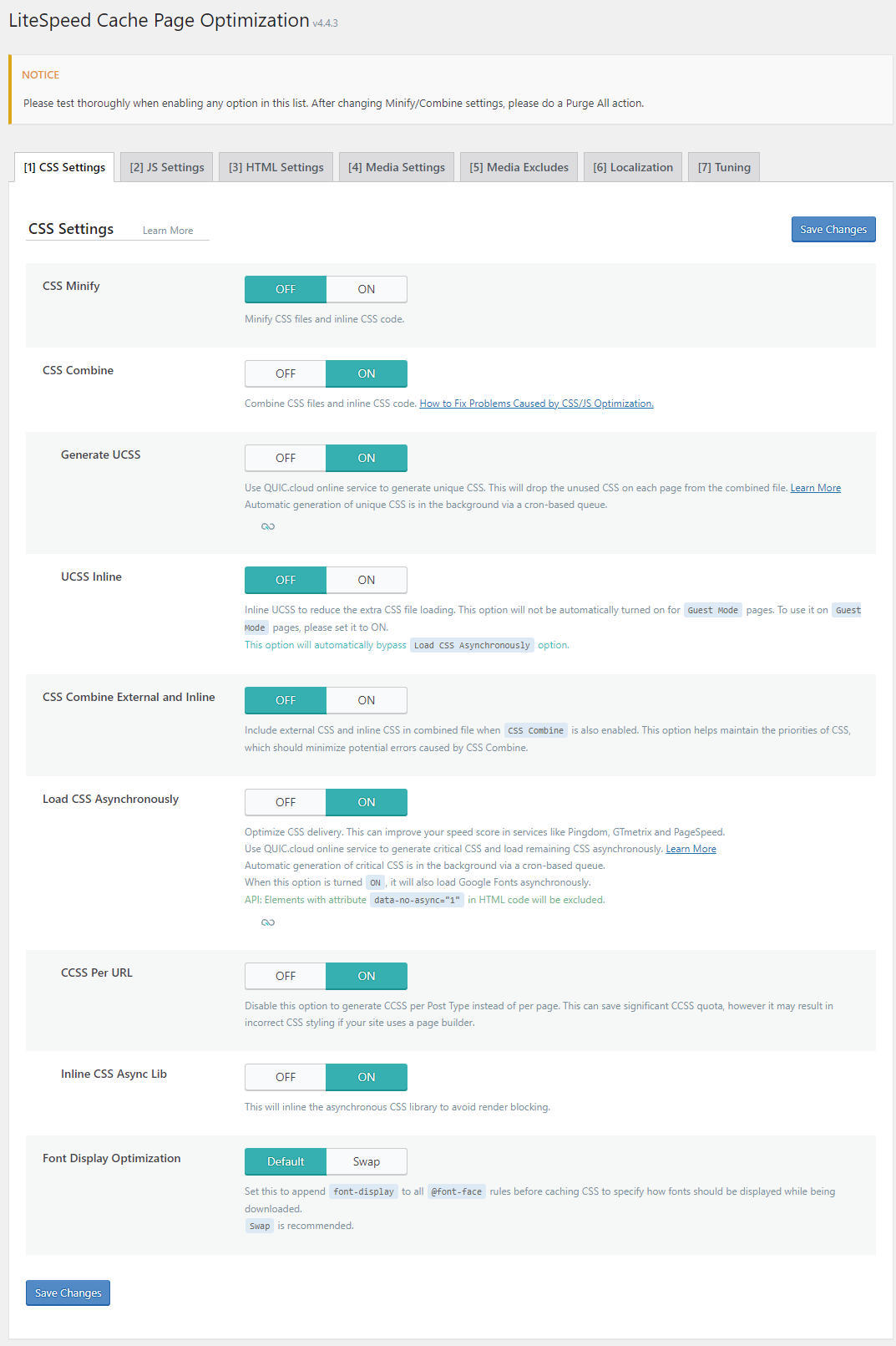

Enable:
-
CSS Minify: ✅ ON
-
JS Minify: ✅ ON
-
HTML Minify: ✅ ON
-
Load CSS Asynchronously: ✅ ON
-
Combine CSS/JS: ❌ OFF (safer)
Media Optimization
-
Lazy Load Images: ✅ ON
-
Lazy Load iFrames: ✅ ON
-
Image Optimization: ✅ ON
Database Optimization
-
Clean Revisions
-
Clean Transients
-
Optimize Tables
(Use weekly, not daily)
Step 7: Enable Browser Cache (Optional)
-
Browser Cache: ✅ ON
Part 3: Clear & Test Cache
-
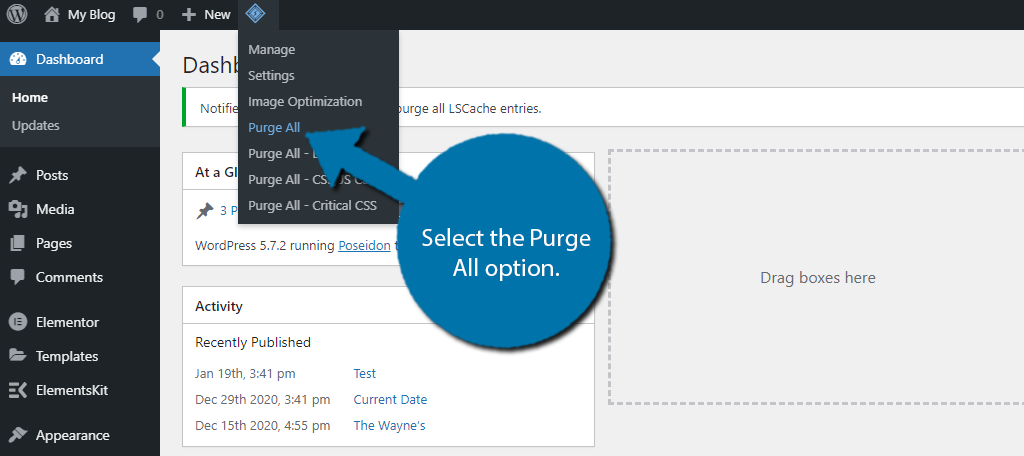
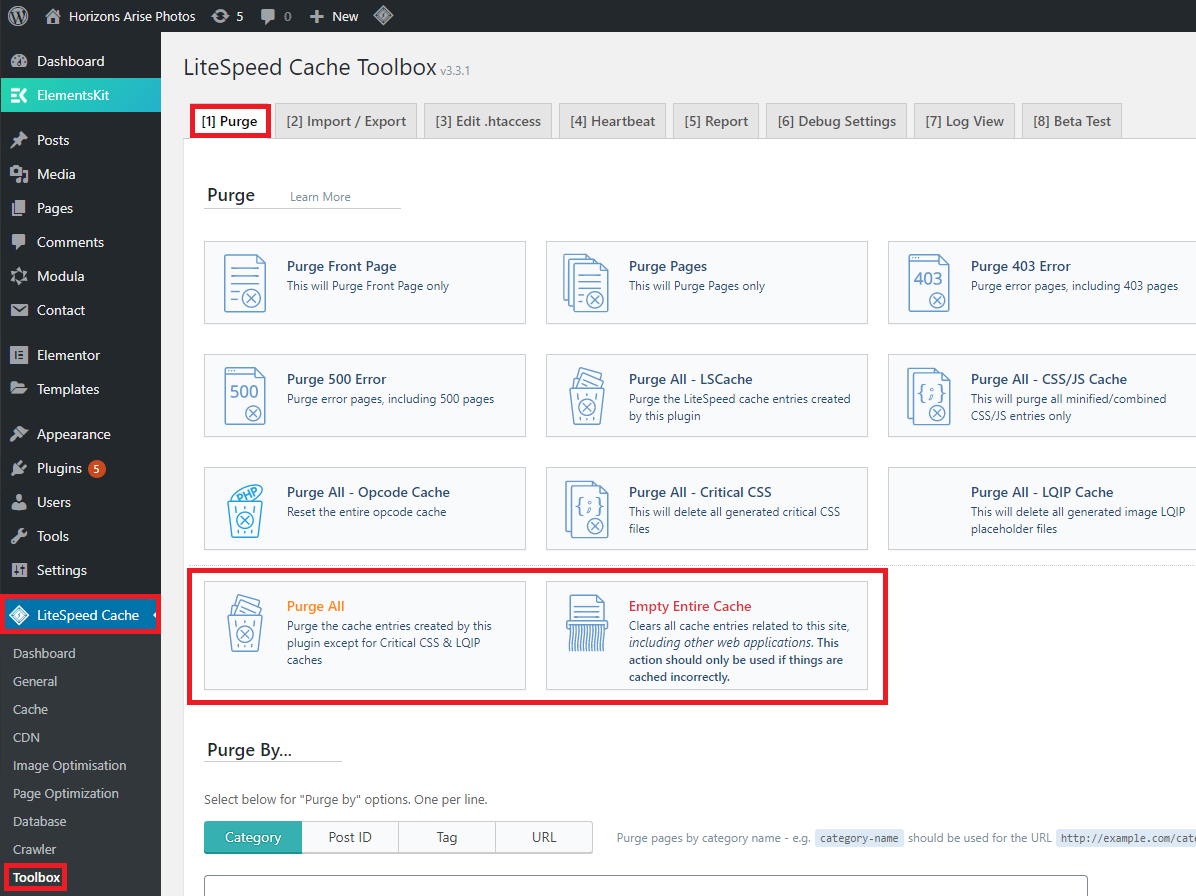
Go to LiteSpeed Cache → Toolbox
-
Click Purge All
-
Visit your website and test pages
Common Issues & Fixes
404 Errors After Enabling LiteSpeed
-
Go to Settings → Permalinks
-
Click Save Changes
Website Broken After Optimization
-
Disable CSS/JS Combine
-
Purge cache
-
Test again
Cache Not Working
-
Confirm LiteSpeed server (not Apache)
-
Check
.htaccesspermissions -
Disable other caching plugins
Best Practices
✅ Use only one caching plugin
✅ Always clear cache after changes
✅ Enable HTTPS before caching
✅ Backup before optimization changes
Performance Results (Typical)
-
Faster page load time
-
Improved Google PageSpeed score
-
Reduced server CPU usage
-
Better user experience
Conclusion
Configuring LiteSpeed for WordPress in cPanel is one of the best ways to boost website performance. With proper cache, optimization, and SSL setup, your site will load faster and handle more traffic efficiently.
